

Customize your Tesla's sounds
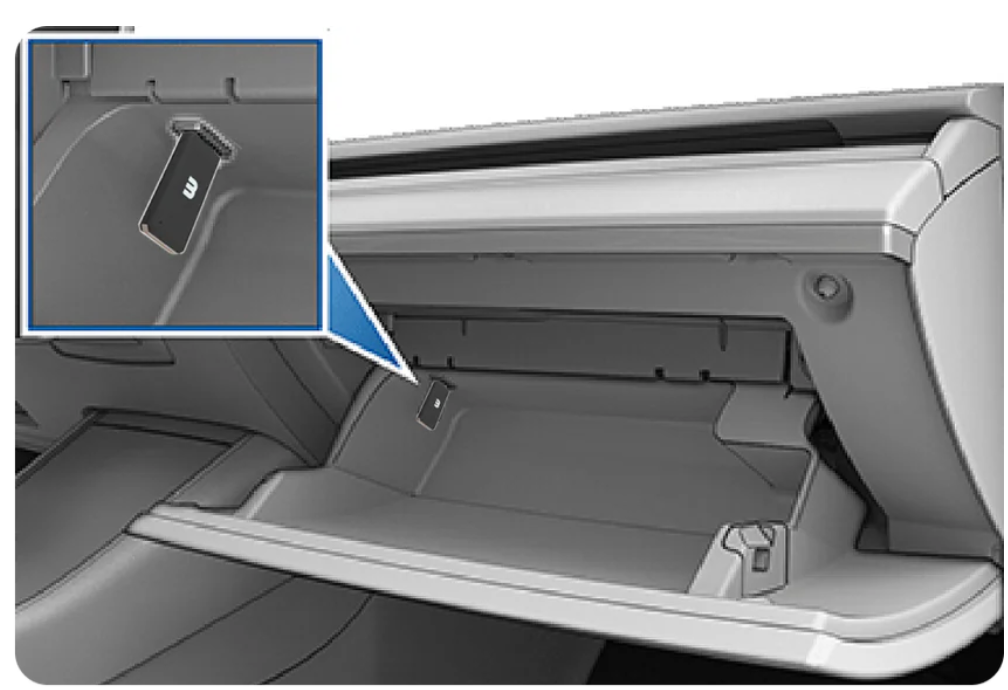
Your K3Y doubles as the USB drive Tesla reads custom audio from. With a single Boombox folder on your K3Y, you can set custom sounds for the external speaker, a custom horn sound, and a custom lock chime — no extra flash drive needed.
How it works
Tesla reads custom audio from a folder named exactly Boombox in the root of a USB drive. Because your K3Y is already in the front USB port, it can be that drive — your dashcam footage stays untouched in its own folder. Everything below lives inside that one Boombox folder.
Before you start
- A Model 3 or Model Y built after September 1, 2019 — it needs the external pedestrian speaker.
- Tesla software 2020.48.26 or later.
- Your K3Y formatted as exFAT or FAT32 — NTFS isn't supported.
- A folder named exactly Boombox in the root of the drive.
1. Custom Boombox sounds (external speaker)
These are the clips that play out loud through your car's external speaker.
-
Add your clips to the Boombox folder
Drop up to 5 audio clips (.wav or .mp3, each under 1 MB) into the Boombox folder. Avoid spaces in file names, and remember Tesla lists the first five alphabetically — so name them to control the order.
-
Pick a sound on the touchscreen
Open the apps drawer, tap Toybox, then Boombox, and choose a clip from the list to play through the external speaker.
2. Custom horn sound
You can replace your car's horn with one of your sounds.
- In Toybox › Boombox, turn on the custom horn and choose a sound from the list — a Tesla preset, or one of your own clips from the Boombox folder.
- When you press the horn, the car plays the first few seconds of that sound through the external speaker instead of the standard beep.
- This reuses the same clips already in your Boombox folder — there's no separate file to add.
3. Custom lock sound
Replace the chime your Tesla makes when it locks.
- Add a file named exactly LockChime.wav (case-sensitive) inside the Boombox folder.
- Use a WAV file: 44.1 kHz, 16-bit, mono or stereo, 1–5 seconds, under 1 MB.
- On the touchscreen, go to Toybox › Boombox › Lock Sound and switch it from Default to USB.
- Adjust its volume under Controls › Locks — it's separate from your media volume.
Good to know
- Name things exactly. The folder must be Boombox, and the lock file must be LockChime.wav, or the car won't find them.
- Keep files small. Each file must be under 1 MB. Trimming to a couple of seconds and mixing down to mono helps you stay under the limit.
- Only the first five. Tesla lists five Boombox clips alphabetically — name them to control the order.
- Dashcam keeps working. These sounds live in the Boombox folder, separate from your TeslaCam recordings.
Where to find sounds
Don't have a clip yet? These libraries offer free, royalty-free sounds you can download and use:
Look for something short, and download it as a .wav or .mp3 under 1 MB — then drop it into the Boombox folder on your K3Y.
Want to capture driving events too? That's what K3Y was built for.
Learn more about K3Y →