

Run a custom light show on your Tesla
Your Tesla can play a custom, music-synced light show using its headlights, signals, windows, and charge port. Load the show onto your K3Y, plug it in, and start it from the touchscreen — the whole thing takes just a few minutes.
How it works
Tesla reads a custom light show from a USB drive. You drop a sequence file and a matching audio file into a folder named LightShow on the drive, and the car detects it automatically. Because your K3Y is already in the USB port, you can use it as that drive — your dashcam footage stays untouched in its own folder.
Before you start
First, prepare your K3Y on a computer, then run the show from the Tesla touchscreen with the car in Park:
- Download a custom light show — you'll get a sequence file (lightshow.fseq) and an audio file (lightshow.wav).
- Open your K3Y drive and create a folder named exactly LightShow in the root.
- Copy both lightshow.fseq and lightshow.wav into it. This sits alongside your dashcam folder, so recordings keep working.
How to set it up
-
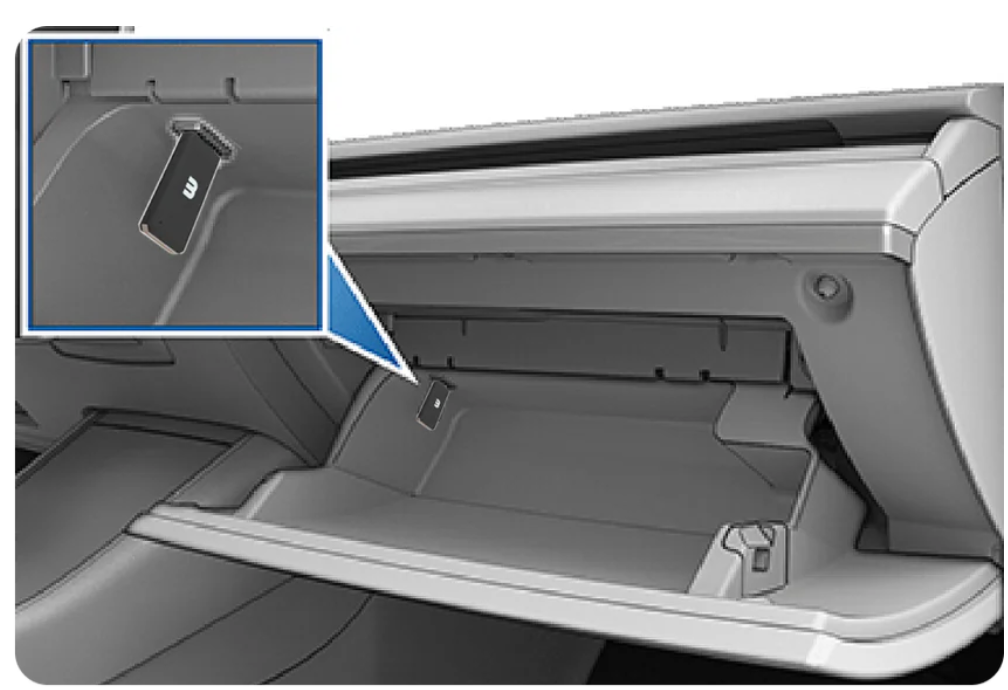
Plug your K3Y into the front USB port
With your light show files loaded, insert the K3Y into the car's front USB port and shift into Park. Custom light shows only run while the car is parked.
-
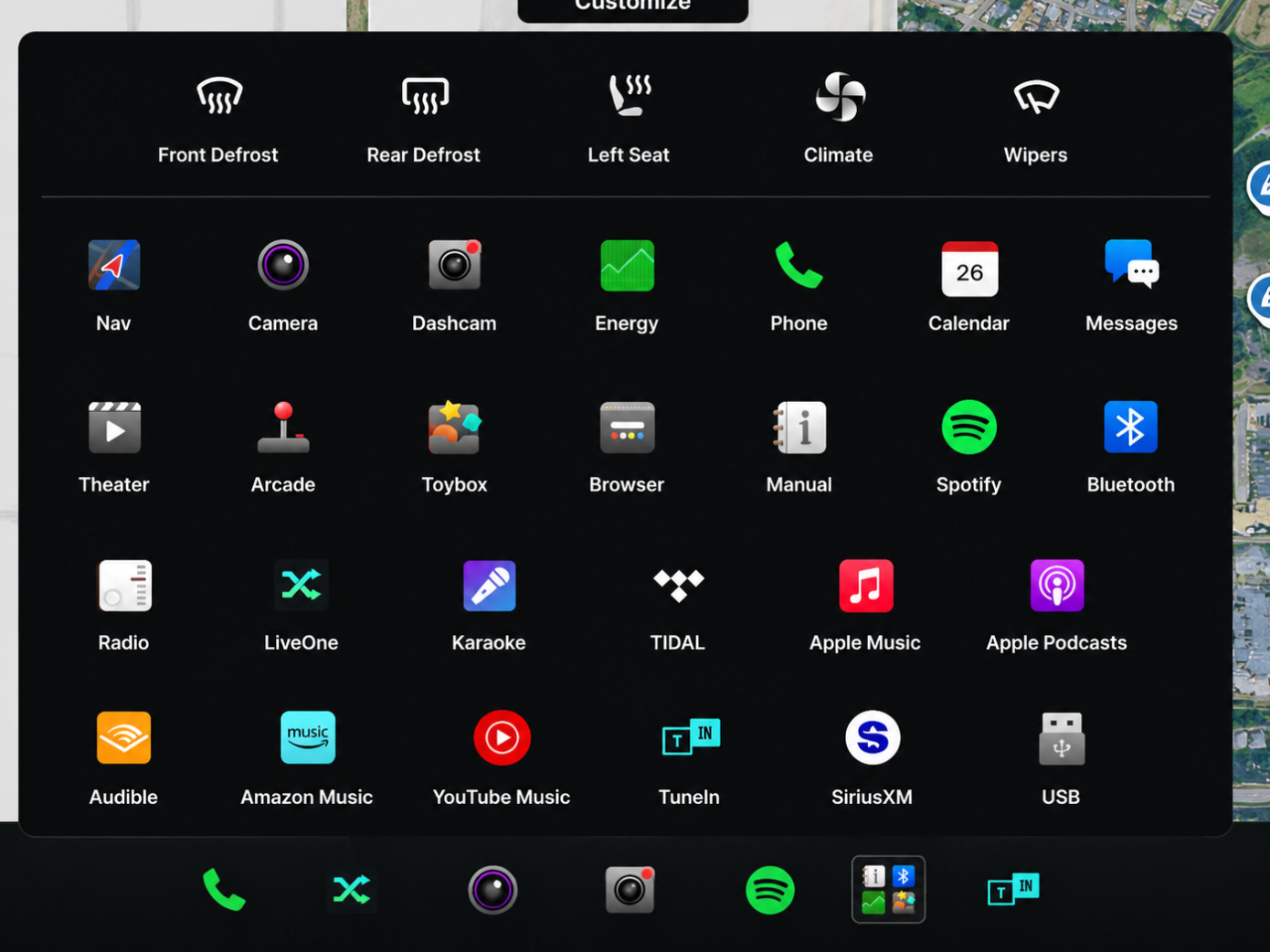
Tap the apps folder in the bottom dock
On the Tesla touchscreen, tap the apps folder in the bottom dock to open your apps drawer.
-
Open Toybox
In the apps drawer, tap Toybox to open Tesla's collection of fun extras.
-
Open Light Show and start your show
In the Toybox, tap Light Show. Your custom show is detected automatically — tap to start it, or use Schedule Show to set it for later.
Toybox›Light Show
Good to know
- Name everything exactly. The folder must be LightShow and the files lightshow.fseq and lightshow.wav, or the car won't detect the show.
- Dashcam keeps working. The light show files live in their own folder, separate from your TeslaCam recordings.
- Park only. For safety, custom shows play only when the car is in Park.
- Show support varies. Custom light shows are available on most recent Tesla vehicles — keep your car on a current software version.
- Mind your neighbors. Shows include lights and audio, so pick the right spot before you start.
Where to find a light show
Don't have a show yet? These sites offer ready-made custom Tesla light shows you can download for free:
Each download gives you a lightshow.fseq and lightshow.wav — drop both into the LightShow folder on your K3Y.
Want a dashcam that doubles as your light-show drive?
Get K3Y